Create or open a theme
- Press the light bulb in the reader's top bar, or press ⌘⇧T. Without a paper open, choose … › Research theme in the library.
- On iPhone and in a narrow window, choose … › Research theme in the reader.
- Tap the light bulb in the reader's top bar (on a phone, it is under ⋮), or press Ctrl+Shift+T on a keyboard. Without a paper open, choose ⋮ › Research theme in the library.
- Click Research theme (with the light bulb) in the bar at the top. Once a theme is chosen, the button shows Theme: name, and clicking it opens the theme beside the paper.
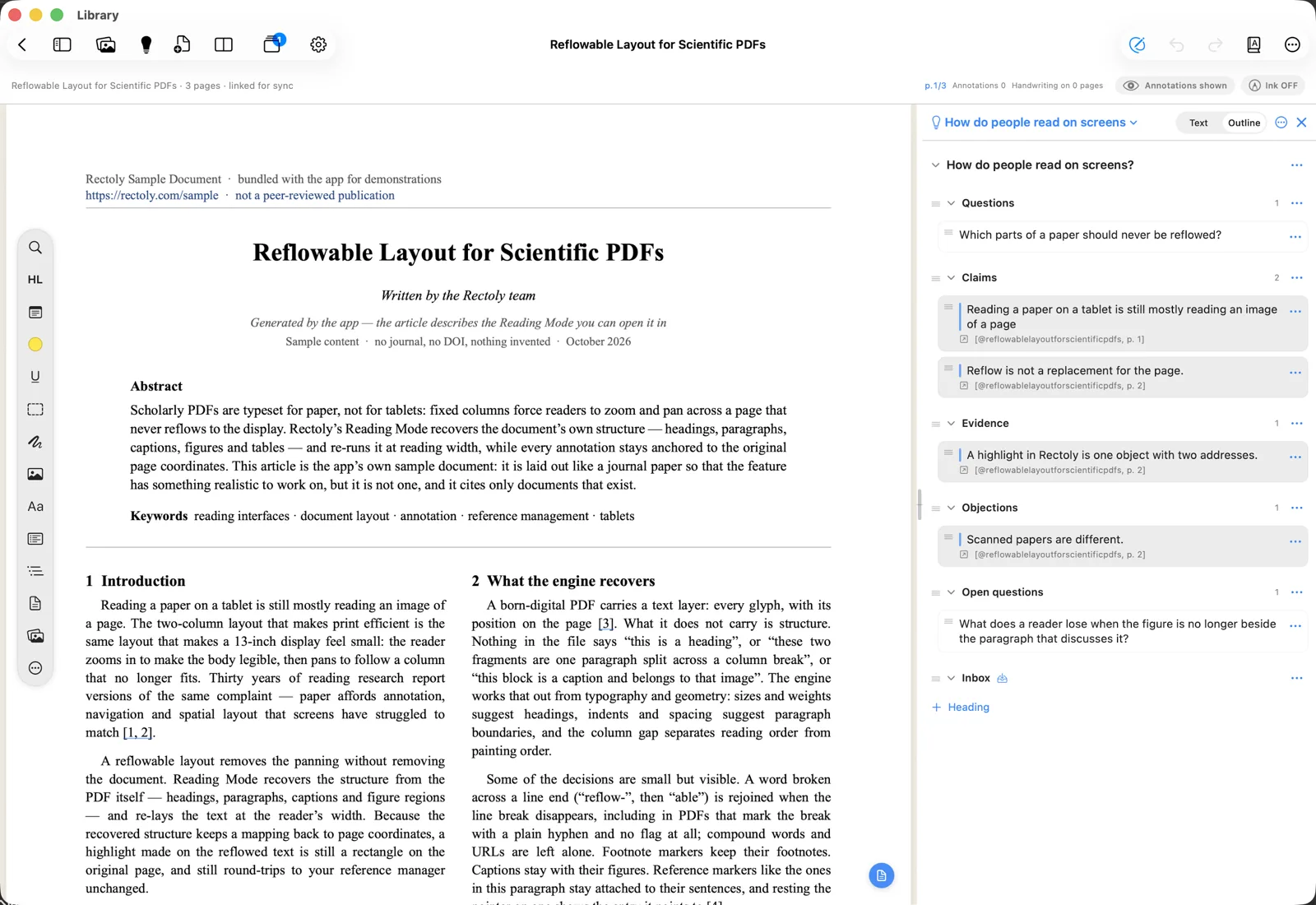
The first time, choose New theme…, type a name and press Create. To start a theme from the notes you wrote across many papers, there is also Organizing your notes with AI. A new theme starts with the headings Questions, Claims, Evidence, Objections, Open questions and Inbox. You can keep them, rename them or add your own.
To switch to another theme, make a new one, rename or delete the current one:
- Use the theme's name at the top of the theme, and its … menu (Rename theme…, Delete theme…).
- Use the theme's name at the top of the theme, and its ⋮ menu (Rename theme…, Delete theme…).
- Use the arrow next to the Research theme button. It also has Open a note as a theme… (any
.mdfile) and Show the themes folder.
Where there is room, the light bulb shows the theme as a column beside the paper; otherwise it opens as a sheet. In the sheet, the beside-the-paper button (Show beside the paper) moves it into the column.
Creating, arranging and exporting themes is free. Showing a theme beside the paper (the column on iPad, Mac and Android, the second pane on Windows) is included in the purchase; it is free during the 14-day trial and beside the sample paper. On iPad, Mac and Android, sending to a theme stays free because it works without the column; on Windows, sending needs the theme open beside the paper.
Send passages to the theme
- Select text in a paper, in the PDF view or in Reading Mode.
- Choose Send to theme:
- In the menu that appears over the selection, or in the menu of a highlight you tap. On Mac, also by right-clicking. The shortcut is ⌘⇧N.
- In the bar that appears over the selection, by right-clicking, or with Ctrl+Shift+N. The theme (or another note) must be open beside the paper.
- In the bar that appears over the selection, or in the menu of a highlight you tap. With a keyboard, Ctrl+Shift+N.
- The passage is added to the current theme as a quotation, followed by its source: the paper's citation key and page, such as
[@devlin2019bert, p. 5]. A highlight's note comes along below the quotation.
- It always goes to the current theme, even when the theme is not on screen. "Added to “name”" confirms it. With no theme yet, Rectoly asks you to create one first.
- By default, passages go under Inbox. To send them under another heading:
- In the theme's … menu, choose Where in the note and a heading (Under …) or At the end.
- In the theme's ⋮ menu, choose Where in the note and a heading (Under …) or At the end.
- Click the arrow next to Send to theme and choose Under … or At the end. The choice is kept for that note.
- The form of the source follows the citation key format in Settings. See Citation key format.
Arrange the theme
The theme shows as an outline: headings you can fold, and under them the blocks you sent.
- Switch the note between Text and Outline above it, or press Ctrl+Shift+O. In the text view you edit the Markdown directly.
- Drag a block to move it, or use a block's menu to Move to another heading, Edit it or Delete it.
- Select a block and press ⌥↑ / ⌥↓ to move it.
- Select a block and press Alt+↑ / Alt+↓ to move it.
- Add a heading with Heading (choose a suggested one or Other…).
- Show in the paper on a block opens the paper at the place the quotation came from (Return / Enter on a selected block).
Export and write
- Copy as Markdown puts the whole theme on the clipboard.
- Export › Markdown file… or Word (.docx)… saves it as a file.
- Both are in the theme's … menu.
- Both are in the theme's ⋮ menu.
What goes out is clean Markdown: headings you never used are left out, Rectoly's own markers are removed, and a References list of the papers you quoted is added at the end.
- The references and the sources in the text, such as
[@devlin2019bert, p. 5], are written in the citation style you chose, such as APA or IEEE. - To keep the
[@key]sources for Pandoc or Quarto in Markdown, turn on Keep citation keys in Markdown ([@key]) under the citation style. Word always gets the style.
A theme as a Zotero note
Export › Zotero note turns the theme into a note in your personal library in Zotero, headings and all, with each quote linked to its page in the PDF and its source as a Zotero citation. It appears while you are signed in.
- Choose Export › Zotero note.
- Choose whether to Tag the cited papers “name” with the theme's name, and whether to Put the cited papers in the collection “name”. Both are off at first, and Rectoly remembers your choice for each theme.
- Press Send.
- Tags and collections are only ever added, never removed. The collection is made if there is none; a paper in a group goes into a collection of that group. Papers that are not in a Zotero library are skipped.
- The note and the theme stay in step both ways. Send again after you change the theme, and the note is rewritten. If nothing in it would change, you see "The Zotero note is already up to date."
- Edits made to the note in Zotero come into the theme when you open it. The theme as it was before is kept in the
.historyfolder beside it. - Edits below the References list in Zotero aren’t brought into the theme. Keep what you want above References.
- If both the theme and the note were edited, nothing is overwritten: sending makes a new note, and the one in Zotero stays as it is.
- If most of the note was deleted in Zotero, the theme is left as it is, and sending makes a new note.
Sending a theme to Zotero is included in the purchase, like sending notes. It is free during the 14-day trial.
Organize a theme's papers in Mendeley
Export › Organize in Mendeley… tags the papers the theme cites with its name, puts them in a collection of that name, or both. It appears when the theme cites at least one paper from your Mendeley library.
- Choose Export › Organize in Mendeley….
- Turn on Tag the cited papers “name”, Put the cited papers in the collection “name”, or both. Rectoly remembers your choice for each theme.
- Press Organize.
- Nothing is taken away: the papers keep the tags and collections they already have. The collection is made if there is none; papers of a group go into a collection of that group. PDFs that are in no library are skipped.
- If you rename the theme, the next run uses the new name. The earlier tag and collection stay.
- When it is done, Rectoly says how many papers were tagged or filed, and which ones could not be changed and why.
Organizing in Mendeley is included in the purchase, like sending notes. It is free during the 14-day trial.
Passages that may relate
At the end of a theme, Passages that may relate lists passages from the papers on this device that are close to the theme's notes: the quotations you sent and their notes, and the paragraphs you wrote yourself.
- A passage is shown as the paper has it, with the paper's title and page and the note it is close to (Near your note: …). The AI writes nothing.
- Open goes to the passage. Add to theme puts it into the theme as a quotation. Don’t show this passage (the ×) keeps a passage out of this theme from then on.
- Everything is found on the device. Close means similar wording and topic, not necessarily the same claim.
- A theme with few notes, or one with no close passages, shows nothing here.
It needs the multilingual model and a passage index made with it, the same ones similar passages use.
- Without the model, Get the multilingual model appears here. With it, passages in Japanese, Chinese and other papers, and in a language other than your notes', are found as well.
- While the index is being built, its progress is shown. Index now builds some on the spot.
- A device with little memory cannot use this, and says so.
Passages that may relate is included in the purchase and free during the 14-day free trial.
Where themes are kept
A theme is a plain Markdown file, name.md, that you can also open in other apps.
- When a notes folder is set, themes are kept in its
Themesfolder. iPad, Mac, Android, Windows and Linux all use this place. - Without a notes folder, themes are kept inside the app. When you choose a notes folder, they move into its
Themesfolder. - Without a notes folder, themes are kept in
Documents\Rectoly\Themes. - If the same theme was changed in two places, a banner says "This theme was changed in two places." Choose which version to keep; sending pauses until you do.
- If another app changed the note, Rectoly asks which version to keep before you send again.