Start writing
- Press Ink OFF in the status bar at the bottom so that it reads Ink ON, then write with Apple Pencil or your finger. On iPhone and in a narrow window, the button is at the top right, next to undo. While handwriting is on, the highlight and sticky-note tools are off; turn it off to use them again.
- Choose Pen in the toolbar, or press P. Write with the mouse, a pen or a finger. Choose Pen again, or press Esc, to go back to selecting text.
- Press Ink OFF at the bottom so that it reads Ink ON (tap the middle of the page if the footer is hidden), then choose Pen in the tool rail (if the rail is hidden, show it with the button next to the side panel button) and write with the stylus or a finger. Turn handwriting off to use highlights, sticky notes and the other tools.
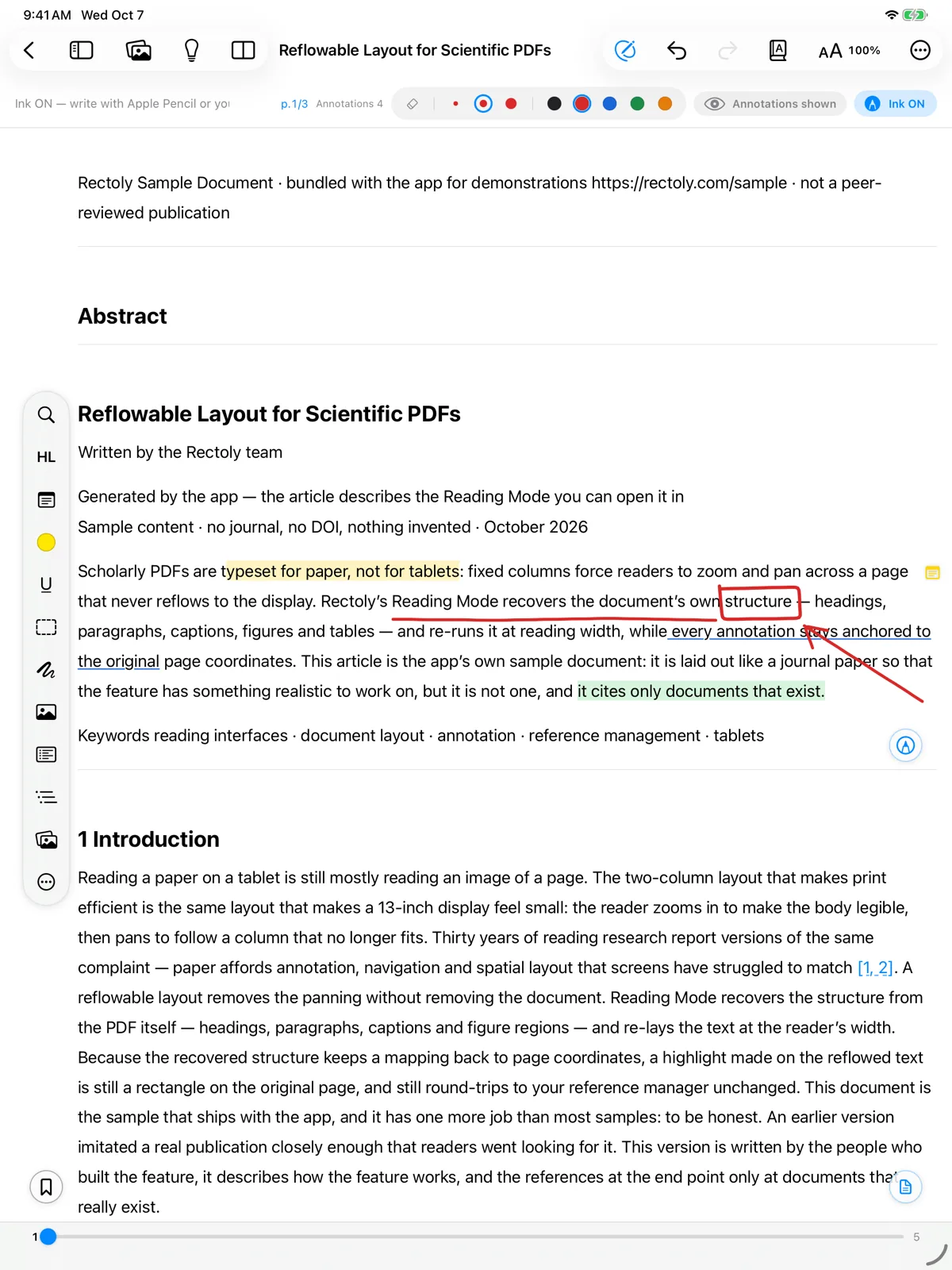
Handwriting is included in the purchase. It is free during the 14-day trial and inside the sample paper. See Trial and purchase.
Color and thickness
- Five colors (black, red, blue, green, orange) and three thicknesses (thin, medium, thick).
- On a PDF page, the Pen type button beside the thicknesses switches between Pen and Fountain pen. The fountain pen's line swells with pressure and thins with the tilt of the Apple Pencil. Handwriting in Reading Mode, and handwriting that has travelled to another device, is drawn as an ordinary pen line.
- Choose the color with the color dots or the Pen colour tool, and one of three thicknesses.
Erase
The eraser removes a whole stroke at a time: drag across the strokes you want gone.
- Choose the eraser, or press E. With Apple Pencil, double-tap or squeeze can switch to the eraser (see below).
- Choose Eraser, or press E. You can also drag with the right mouse button while the pen is on.
- Choose Eraser in the pen's bar, or hold the button on your stylus while you write.
- Long-press a stroke for Delete Strokes or Clear Page Ink.
Apple Pencil
- Double-tap and squeeze follow the Apple Pencil settings of your iPad (switch to the eraser, switch to the previous tool, or show the palette).
- The palette has the pen, the HL Pen, the eraser and a button to turn handwriting off.
- With an Apple Pencil that supports hover, a ring shows the pen's color and thickness before you touch the screen.
Draw with the stylus only
- Settings › Reader › Draw with the stylus only: your finger then scrolls and selects, and only the stylus draws or erases.
- Pen button chooses what the button on your stylus does when you press it: Toggle eraser, Previous tool or Do nothing. Holding it while you draw always erases.
Handwriting on when a paper opens
- Reader settings › Handwriting mode on by default.
- Settings › Reader › Ink on when a paper opens.
- Settings › Reader › Ink on when a paper opens.
Switching handwriting on or off inside a paper is only for that time; it does not change this setting.
Where your handwriting goes
Whether handwriting appears on your computer and your other devices depends on the edition and on settings. See Sharing handwriting between tablets and PCs. You can also search your handwriting — see Handwriting search. For handwriting in Reading Mode, see Reading Mode.